
Glow
A Glow transition uses a sudden, intense burst of light to dissolve from one scene to the next. As the first clip ends, it rapidly brightens into a vibrant glow that washes out the screen, seamlessly fading into the next scene as the brightness returns to normal.
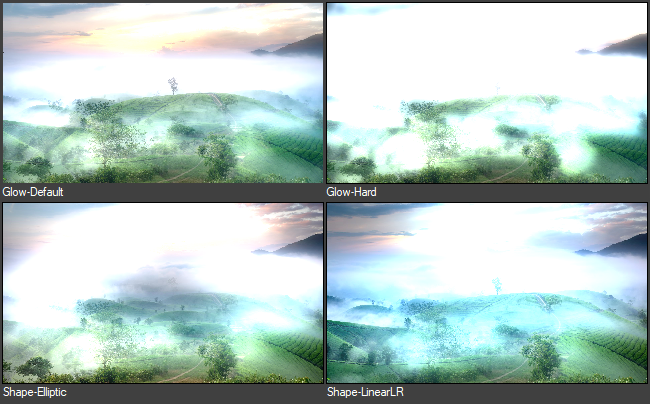
| Parameters: | |
| Glow | Adjusts the brightness and strength of the glow. Higher percentages create a more intense, vibrant light effect. |
| Size | Controls the spread of the glow. Higher values diffuse the light further across the image. |
| Level | Lower values apply the glow to the whole image, while higher values isolate only the brightest highlights. |
| Softness | Higher values soften the boundary of the glow area. |
| Extras | Fine-tune the shape, distribution, and color properties of the glow. Use these controls to stretch the light beams, apply custom color tints and set blending styles. |
| Stretch | Stretches the glow into a linear beam. Slide toward 0% or 100% to stretch the light along a single axis. |
| Angle | Controls the blur angle. Value of 360 degrees (or 1.0 in some hosts) = one full rotation. |
| Mode | Sets how the glow mixes with the background image. |
| Tint | Changes the color of the glowing light. Value of 0.0 = no change. Positive - channel up. Negative - channel down. |
| Shape | Use this section to conform the glow to a shape, partially or entirely. |
| Mask | Choose a shape from several options. Glow Mask limits where the glow effect will appear in the image. |
| Spread | Based on the selected shape, this slider sets the area where the glow effect will be visible. Lower values confine it to the shape, while 100% spreads it over the whole image. |
| Position | Position the shape within the image by dragging the center point. If "Linear" is selected, you can adjust its angle by moving the center point. |